
How to Use Claude for Business Operations: An AI-Assisted Operations Guide
By Princess Nicole Denosca · Published
Most businesses meet AI in a chat window: someone asks a question, gets a decent answer, and the rest of the day stays exactly as it was. Claude can do more than that for operations work. It can read the documents your process depends on, turn messy notes into something a team can act on, and reach into the tools where the work already lives. This guide walks through what that looks like in practice, which operations workflows are worth trying first, and what should stay with a person.
How can Claude help with business operations?
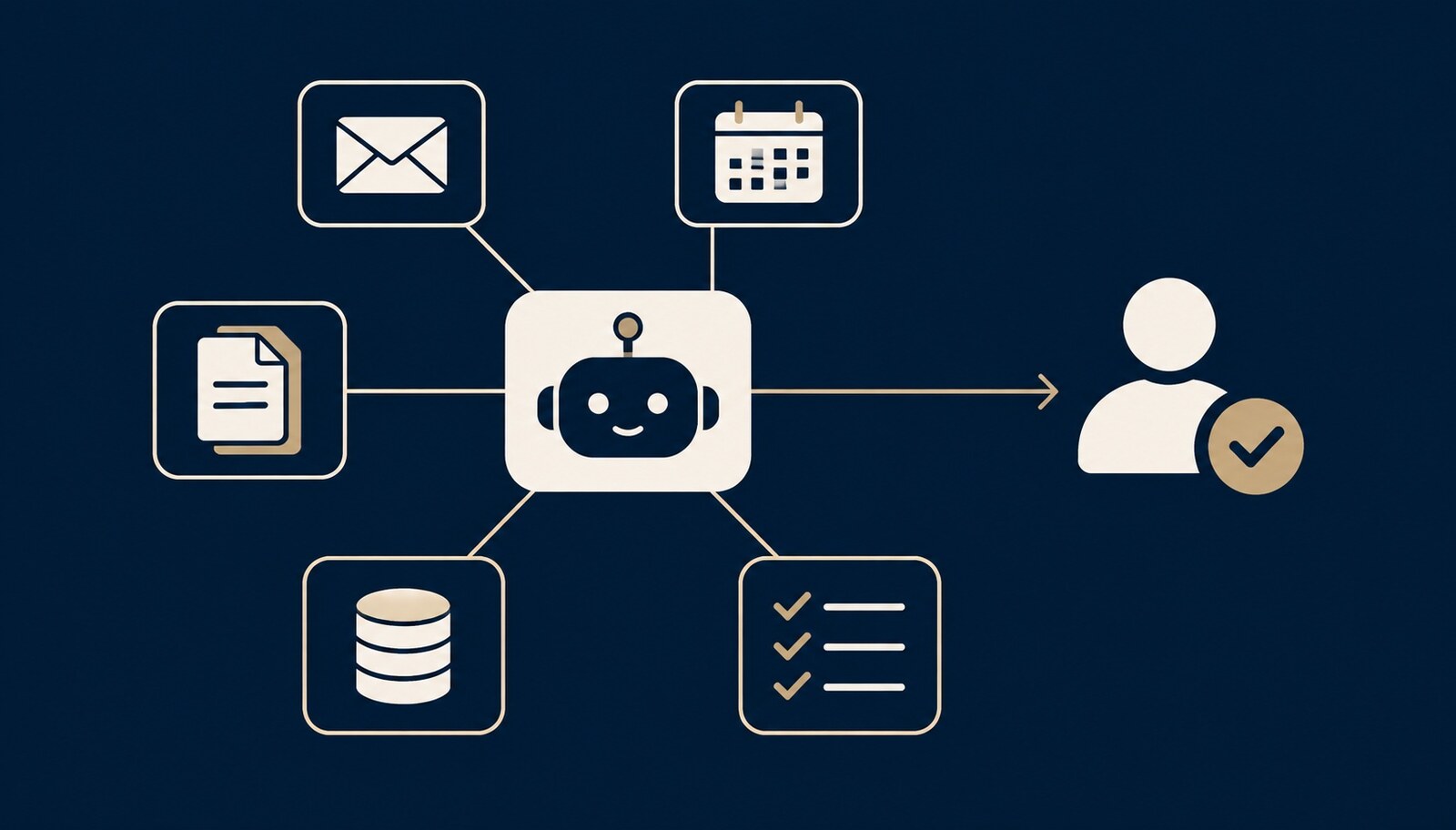
Claude reads and summarises long documents, drafts routine communications, turns meeting notes into action lists, and helps document and maintain SOPs. Connectors let it read from and act in the tools you already use, and it inherits each connected person’s permissions. The useful setup gives Claude a narrow job with clear inputs, a known good example, and a named reviewer before anything reaches a client.
Key takeaways
- Start with one repeated operations task that has one owner and a known good example, not a company-wide AI rollout.
- Claude is only as useful as the context you give it: the current SOP, the approved example, and the real source material.
- Connectors inherit each person’s permissions, so deciding what Claude may reach is an access-control decision, not a technical extra.
- Anything that reaches a client, a payment, or a legal record stays human-reviewed.
- Judge the setup on time saved, rework rate, and errors caught. If none of those move, the workflow is not worth keeping.
What AI-assisted operations actually means
AI-assisted operations is a simple idea: a person still owns the outcome, but AI takes the parts of the work that are repetitive, text-heavy, and easy to check. It is not a replacement for a process, and it is not a team of invisible employees. If the process underneath is unclear, AI makes the confusion faster.
That is why we describe our own approach as AI-assisted rather than AI-driven. The difference is not cosmetic. In an AI-driven setup, the tool decides what happens next and a person finds out afterwards. In an AI-assisted setup, the sequence, the owner, and the review point are decided first, and the tool is placed where it earns a specific job.
Claude is one of the assistants people reach for in this kind of setup, largely because it handles long documents well, writes in a tone you can steer, and can be connected to other software. Anthropic also publishes ready-to-run workflow packages aimed at small businesses, which put those connectors and templates inside tools owners already use, including QuickBooks, PayPal, HubSpot, Canva, DocuSign, Google Workspace, and Microsoft 365.
Why the chat window is not the operations win
The default way to use Claude is conversational: open a tab, paste some context, copy the answer somewhere else. That is fine for drafting one-off things. It breaks down as soon as the work is recurring, multi-step, or shared across a team. Three things tend to go wrong.
- Context does not travel. Every new conversation starts cold unless someone re-attaches the SOP, re-explains the policy, or pastes the client history again.
- Outputs have nowhere to land. Claude produces a good summary, but nobody built the handoff into the client channel, the CRM, or the project board, so the summary still has to be moved by hand.
- Accountability is unclear. When a draft reaches a client, it is not obvious who reviewed it, or which version of the source material the assistant was looking at.
All three are workflow problems, not model problems. The fix is to design the operation first and then place the assistant inside it. A useful way to picture that is three layers, each with a different job.
Layer 1
Context
The SOP, the approved example, the policy, the records. This is what makes the output sound like your business instead of a stranger’s.
Layer 2
Assistant
One narrow job with defined inputs and a defined output: summarise, draft, sort, extract, or compare. Not “help with operations”.
Layer 3
Review
A named person checks the output against the source, then decides where it lands. This layer is what makes the setup safe enough to keep.
Most failed AI setups skip one of these layers. Usually it is the first one, because gathering context is boring work. Sometimes it is the third, because review takes time that the automation was supposed to save. Both gaps show up later as a tool the team quietly stops using.
What Claude can do for daily operations
The table below is a practical map of what the assistant is genuinely useful for in a small operations function, and what still needs a person. It is deliberately unimpressive: these are the jobs that actually show up every week.
| Capability | What it looks like in operations | What you still review |
|---|---|---|
| Read and summarise long documents | Contracts, vendor terms, policy documents, or a folder of scattered notes turned into the points that matter | Confirm the summary against the source before acting on it |
| Draft routine communications | Welcome emails, follow-ups, status updates, and quote responses written in your approved tone from past examples | Tone, accuracy, and anything the client will read |
| Turn notes into action lists | Meeting transcripts or call notes converted into tasks with owners, dates, and open questions | Owners, dates, and anything that was decided verbally |
| Structure messy information | Inbound requests grouped by intent, a contact list cleaned up, or a spreadsheet turned into a short report | Edge cases, duplicates, and anything mislabelled |
| Document and maintain processes | A walkthrough or checklist turned into a structured SOP, then updated as the process changes | Approval from the person who owns the process |
| Work inside your existing tools | Connectors let Claude read from and act in connected apps, and it inherits each person’s permissions in those apps | Which apps are connected, and what each one is allowed to reach and change |
| Build working artifacts | Editable documents, spreadsheets, slide decks, whiteboards, and simple dashboards that can be exported to common file formats | Figures, formulas, and anything presented as fact |
Two of these deserve a closer look, because they are where operations teams usually get the most value.
Documentation and SOP maintenance
SOPs are the highest-leverage starting point for most small teams, and also the thing that goes stale fastest. Claude is useful here because it can take a rough walkthrough, a checklist, or a thread of messages and turn it into a structured procedure with steps, tools, owners, and a definition of done. What it cannot do is decide whether the process is correct. That judgement belongs to whoever owns the work.
If you are new to writing these, our guide to creating an SOP and the SOP template with a worked example cover the structure; the SOP Starter Kit has the fill-in files.
Connectors: the difference between a chatbot and a workflow
A connector lets Claude reach into another service, retrieve data, and take actions there. The important detail is permissions: a connector inherits what the connected person can already access. If someone cannot open a record in the CRM, Claude cannot reach it through that person’s connection either. Custom connectors that use one shared credential are different — they can reach whatever that shared credential can reach — which is exactly why they need a deliberate decision rather than a quick toggle.
The connector ecosystem is broad and moving quickly, including an open standard called the Model Context Protocol (MCP) that lets services expose their own connectors. Treat the list of what is available as something to check on the day you build, not something to assume from an article.
Seven operations workflows worth trying first
These are the workflows we would test first in a growing business, because the inputs already exist and the output is easy to judge. Each one has a review step built in — that is not a caution, it is the design.
| Workflow | What the assistant does | What a person approves |
|---|---|---|
| Client inbox triage | Groups inbound messages by intent — question, quote request, support issue, complaint, urgent — and drafts replies for the common categories | Every message that goes out, and the escalation rules |
| Weekly status brief | Pulls updates from meeting notes, task lists, and records into one brief in your usual format | That the brief matches what actually happened |
| SOP first drafts | Turns a walkthrough, checklist, or message thread into a structured procedure | Accuracy of each step, then approval to publish |
| Meeting notes to actions | Extracts action items, owners, and dates from a transcript or your notes | Who owns each item and when it is due |
| Proposal first drafts | Drafts a proposal from your best past proposal plus the current notes, in the same structure and tone | Scope, price, timelines, and promises made |
| Document summaries with gaps | Summarises a long document and flags missing information, risks, and unusual clauses | Verification against the source before decisions |
| Reporting and analysis | Turns a spreadsheet into a short explanation of what changed and why it might have changed | The numbers, and the interpretation |
Notice what is not on the list: autonomous outreach, unreviewed client replies, and decisions about money. Those are the workflows that look impressive in a demo and cause expensive problems in production.
How to set up an AI-assisted operations workflow
The order matters more than the tool. Teams that connect apps first end up automating a process they have not agreed on. Teams that agree on the process first end up with something they can hand over.
Pick one repeated task
Choose work that happens every week, has one clear owner, and has a good example you can point at.
Gather the context
Collect the current SOP, the approved example, and the source material the task always uses. Label the version.
Write the request once
State what the output must contain, what to flag as uncertain, and what to leave out. Save it so it is repeatable.
Test on a safe sample
Run it on past or anonymised material and compare the output with the approved version, line by line.
Add the review step
Name the person who checks the output and what they must verify before it reaches a client.
Connect the tools last
Only once the output is reliable, connect the apps the workflow needs — and keep access as narrow as the job allows.
Step six is where most of the judgement sits. Connecting an assistant to live customer records is an access decision, and it should be reviewed by whoever is responsible for data in the business — not decided by whoever is excited about the demo.
Worked example: a weekly status brief
Here is what one of these workflows looks like end to end. The names and details below are illustrative — this is a made-up example used to show the shape of the setup, not a real client or a real result.
Worked example (illustrative)
Weekly client status brief for a small property brokerage
- The situation
- A brokerage runs one internal review each week. Notes land in a shared document, tasks sit in a project board, and the owner writes the client update by hand on Friday afternoon. It takes about ninety minutes and is often late.
- Context provided
- This week’s meeting notes, the SOP for the brief, last week’s approved brief as the format example, and an export of the task list.
- The saved request
- Using the attached SOP and last week’s brief as the format, summarise this week’s notes and task list into five parts: completed, in progress, blocked, decisions needed, next week. Mark anything not supported by the notes as “to confirm” and cite the note each point came from.
- What comes back
- A draft brief in the same five parts, with three items flagged “to confirm” and a source note for each claim.
- Human review
- The account owner removes two items that were discussed but never approved, adds one client request that was never written down, and checks the figures before approving.
- Where it lands
- The approved brief is posted in the client channel and filed in the client folder. If the format changed, the SOP is updated in the same week.
- What the exercise revealed
- Two recurring gaps: blocked items had no owner, and one approval step was skipped twice. Both became SOP edits rather than one-off fixes.
The honest result of a setup like this is not “the AI wrote the report”. It is that the owner stopped starting from a blank page, the brief arrived in the same shape every week, and the review pass surfaced two process problems the team had been living with. Those are the outcomes worth measuring.
What should stay human
A short list, and it is worth writing down before you build anything. Our fuller treatment of this is in what you should never automate; the same boundaries apply when the tool happens to be an assistant rather than an automation platform.
| Keep with a person | Why |
|---|---|
| Sensitive client conversations and complaints | Relationships and trust are the point; a wrong tone costs more than time saved |
| Pricing, negotiation, and contract terms | These are commitments, and they need someone accountable for them |
| Anything legally binding or regulated | Liability does not transfer to a tool |
| People decisions | Hiring, performance, and discipline require context and fairness you must be able to explain |
| Final approval of client-facing output | The draft is a first pass, not a send |
| Judgement calls where context is incomplete | An assistant will fill a gap confidently; a person knows to ask |
Permissions, privacy, and the checks to run first
Before connecting anything, run this list. It takes about twenty minutes and prevents most of the problems that make owners switch a setup off three weeks later.
- Connect only the apps the workflow actually needs. Extra access is extra risk.
- Confirm what each connector can read and change, and remember it inherits the connected person’s permissions.
- Decide what client-identifying information may appear in prompts, and check that against your own client agreements and privacy policy.
- Name the reviewer for every workflow, in writing, before the first run.
- Keep one approved version of each SOP or template, and record which version the assistant was given.
- Log what changed and when, so a wrong answer can be traced back to a source rather than argued about.
- Review the plan and limits you are on before scaling up — pricing, features, and usage limits change often, so check the vendor’s own pricing page rather than an article.
Rule of thumb
If you would not hand the task to a capable new team member on their first day without review, do not hand it to an assistant without review. The capability is not the question; the accountability is.
Common mistakes that make AI setups stall
- Automating a process nobody has agreed on. The assistant will follow whatever pattern it is given, including the bad one.
- Starting with the hardest task. Teams pick the messy, high-stakes job first because it looks impressive. Start with the boring weekly one.
- No reviewer named. Without an owner, a wrong output becomes a rumour about the tool rather than a fixable mistake.
- Trusting a confident draft. Assistants produce fluent text whether or not the underlying claim is supported. Fluent is not verified.
- Connecting everything at once. Broad access makes it impossible to tell which step caused a problem.
- Never updating the context. An assistant working from a six-month-old SOP will produce a confident, out-of-date answer.
How to tell whether it is working
Give a workflow three to four weeks, then look at four signals. If none of them move, the workflow is not ready to keep — which is a normal result, not a failure.
| Signal | Good looks like | Warning sign |
|---|---|---|
| Time on the task | Start to finished output takes meaningfully less time than before | Fixing the draft takes longer than writing it did |
| Rework rate | Most drafts need light edits only | Every draft is rewritten from scratch |
| Errors caught | The reviewer catches fewer surprises over time | A new category of mistake appears each week |
| Adoption | The team uses it without being reminded | It is used once and then abandoned |
One more check worth doing: total the subscription cost and the reviewer’s time, and compare it with the time recovered. For a single weekly task, that number is often close to break-even, and the real return is the consistency and the process problems the exercise exposes. Say that number out loud before promising savings to anyone else.
Where to start this week
Pick one workflow from the list above, the one that annoys you most every week. Write down its inputs, its approved example, and its reviewer. Run it once on past material and compare the output line by line. If it holds up, save the request and repeat it next week. If it does not, the gap is usually missing context rather than a missing feature.
If you would rather have someone map the process first and tell you honestly which parts are worth automating and which are not, that is the work we do. See how systems connect in our automation workflows example or the multi-brand operations case study, and you can always tell us what’s not working.
Sources and further reading
Product capabilities change quickly, so these are the primary pages to check rather than rely on this article. Feature availability, plan limits, and pricing are set by the vendor and may differ by region and plan.
- Claude product overview — what the assistant is positioned to take on, including meeting notes to action lists.
- Using connectors to extend Claude’s capabilities — how connectors work, including how permissions are inherited.
- Claude Artifacts — the document, sheet, deck, and dashboard outputs and their export formats.
- Claude for Small Business — the connectors and ready-to-run workflow package aimed at small business owners.
Frequently asked questions
Is Claude good for business operations?
It is a strong fit for operations work that is text-heavy, document-heavy, or judgement-heavy: summarising long documents, drafting routine communications, turning notes into action lists, and keeping SOPs current. It is a weak fit for work that needs authority, relationships, or accountability you cannot review, such as negotiating terms or handling a complaint.
Do I need a technical team to use Claude for operations?
No. Most of the value comes from writing a clear request, giving Claude the right documents, and adding a review step. Connecting Claude to other apps is where technical judgement matters, and that is a good place to ask for help rather than improvise.
What should I not let Claude do on its own?
Do not let it send client-facing messages unreviewed, change prices or contract terms, make personnel decisions, act on incomplete context, or move money. Keep a named person responsible for approving anything that leaves the business.
Which tools can Claude connect to?
Claude can be connected to other services through connectors, including pre-built connectors and any service that supports the Model Context Protocol (MCP). Anthropic also ships ready-to-run workflow packages for small businesses that connect tools such as QuickBooks, PayPal, HubSpot, Canva, DocuSign, Google Workspace, and Microsoft 365, with more added over time. Availability and limits change, so check what your own plan and region actually offer.
How do I know if Claude is actually saving time?
Measure the same task before and after: time from start to finished output, how many drafts need a full rewrite, and how often the reviewer catches a mistake. If none of those improve within a few weeks, the workflow is not ready to keep.
See where your operations stand
If you want a second opinion on which part of your operations is worth automating — and which should stay with a person — take the free Health Check to see where your business stands, or tell us where the work gets stuck. We will map the process first and suggest what to try.
Take the free Health CheckWant help putting this into practice?
You do not need to know exactly what solution you need. Tell us where the work gets stuck and we will take it from there.
Take the free Health CheckRather write to us? Tell us what’s not working and we’ll reply with a clear next step.